 New: watch live streams and catch the best moments
Turn long videos into vertical clips
Paste a link or drop a file. Nexora Clip finds the strongest moments, keeps the speaker in frame, adds captions and renders clips ready for Shorts, Reels and TikTok. All on your own PC.
Post to
- YouTube Shorts
- Facebook Reels
- TikTok
The looks
Four layouts.
Eight caption styles.
Pick one for the whole video, or change it for a single clip in the editor.
- Gaming split: Gameplay on top, face below
- Cinematic: For trailers and plain gameplay
- Follow the speaker: One crop that tracks the face
- Centre crop: Plain and steady
- Gaming captions: Big, white, thick outline
- Default captions: Punchy word by word
- Green pill: Bold highlight on the spoken word
- Loud captions: Large yellow, red pops
- Minimal captions: Soft and quiet
- TikTok captions: Pink pop highlight
- Neon captions: Glowing cyan and magenta
- Podcast captions: Calm, readable, on a panel
How it works
Made for people who clip a lot.
One install, no server. Every step runs on your PC, and you can change anything before you post.
Moments
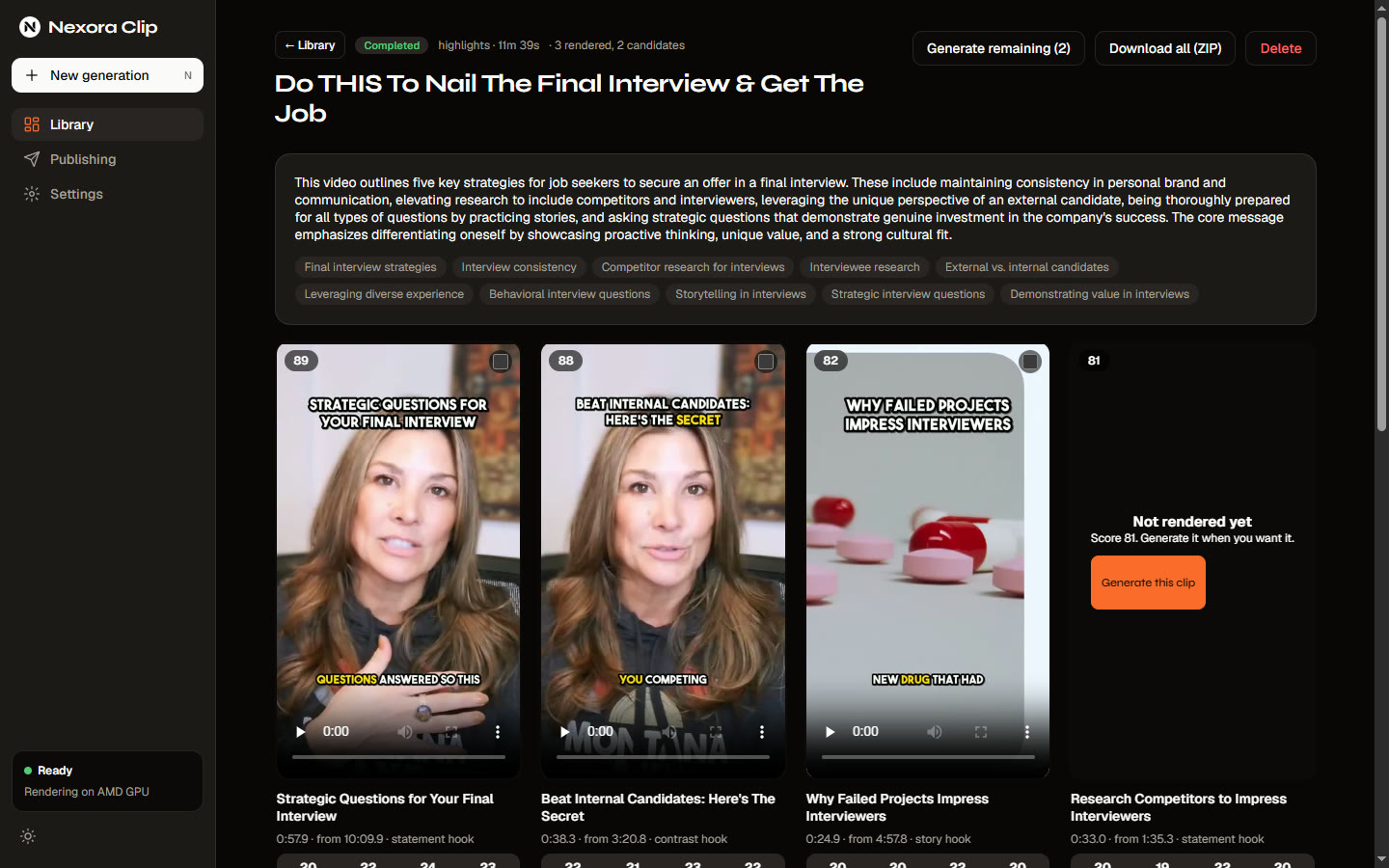
Finds the clips worth posting
The AI scores every moment for hook, engagement, value and shareability. Long videos are read in overlapping windows, then ranked together, so the best clip wins wherever it is.
Highlights · Series · Topic · Recap · Trailer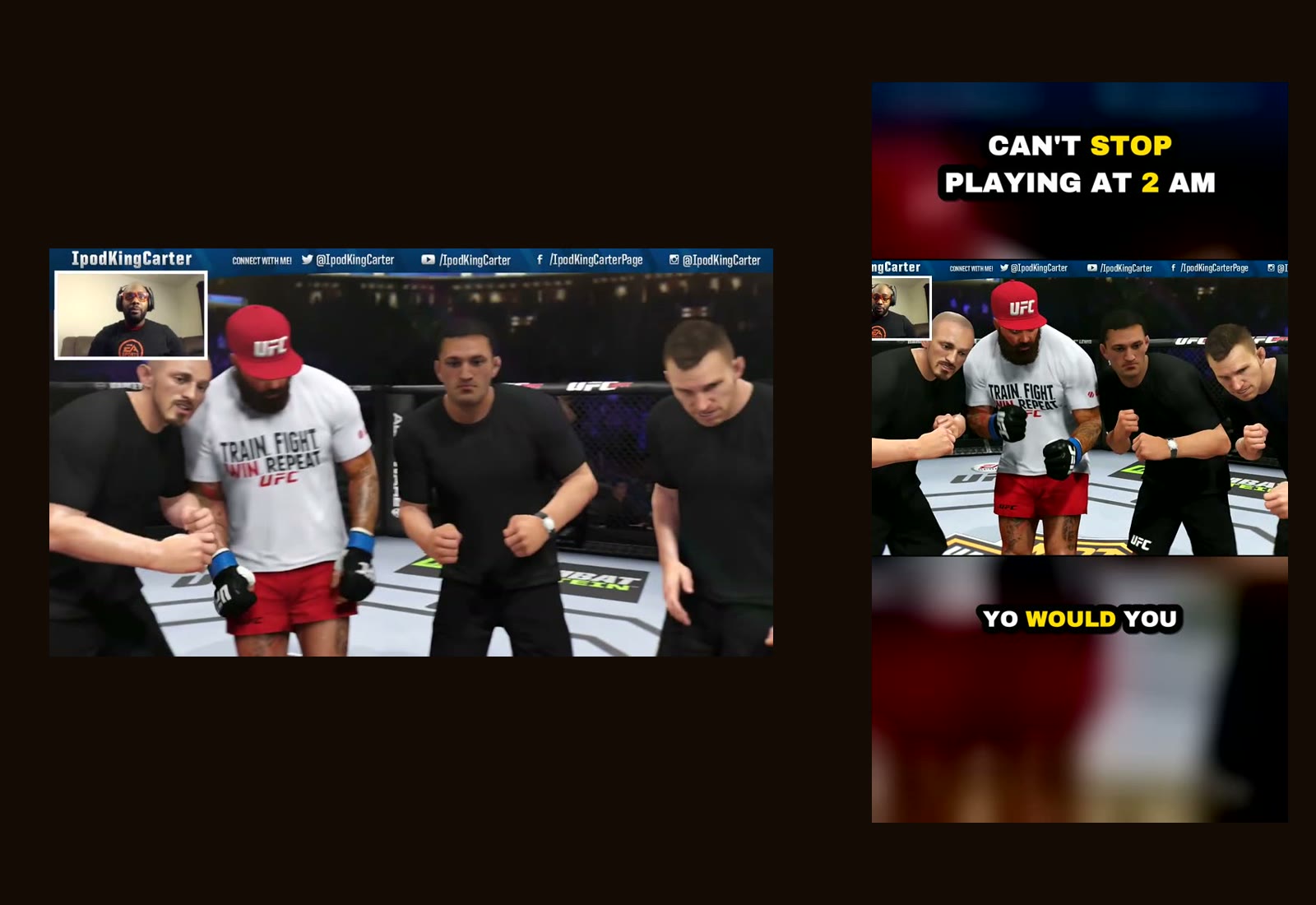
Reframing
Keeps the speaker in frame
Faces are tracked on your PC and the vertical crop follows them. A streamer's webcam is found automatically and shown under the gameplay, not twice.
Face tracking · runs locally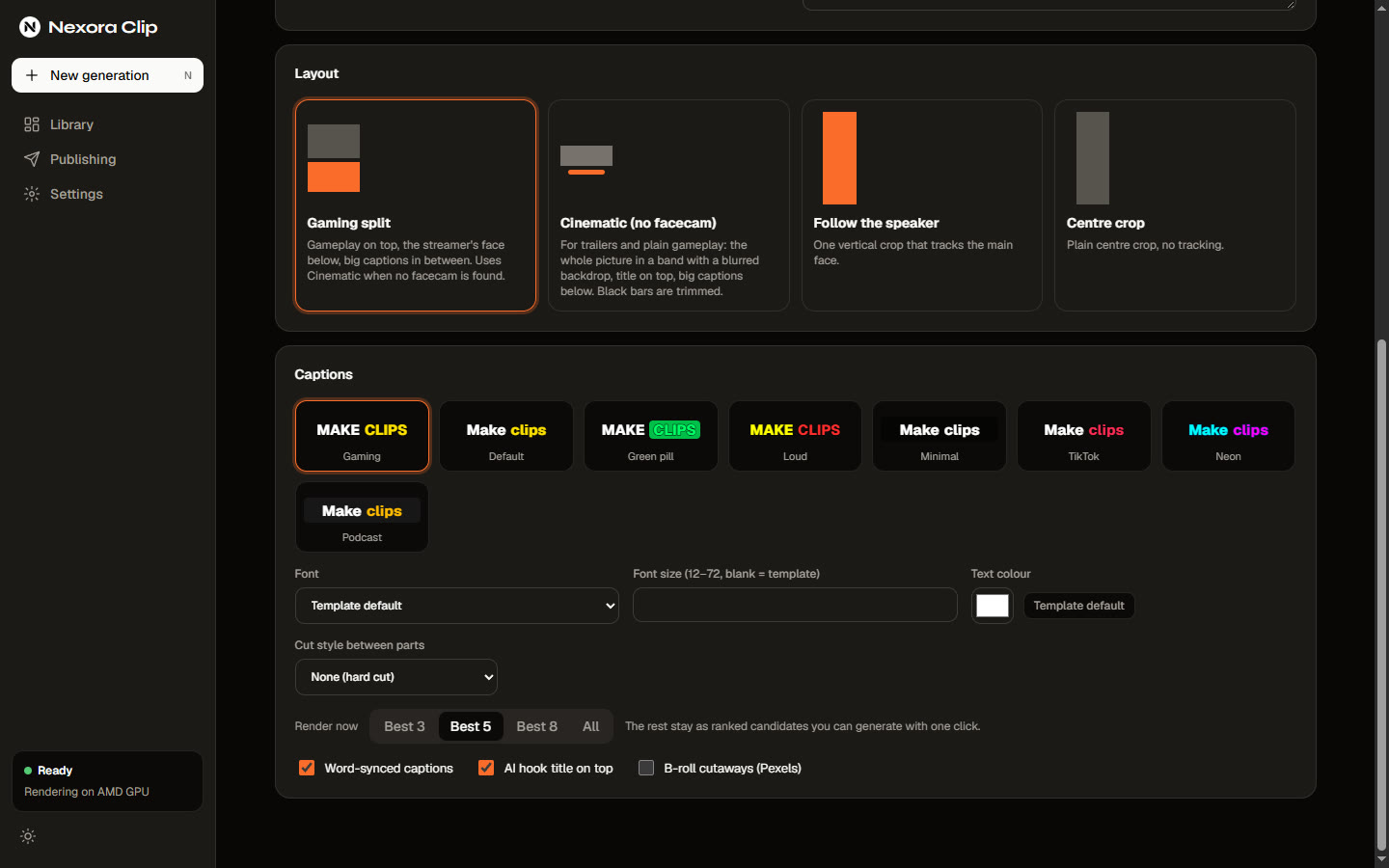
Captions
Words that move with the voice
Eight caption styles, 22 fonts and your own fonts. The active word pops, and a hook title opens every clip.
8 styles · 22 fonts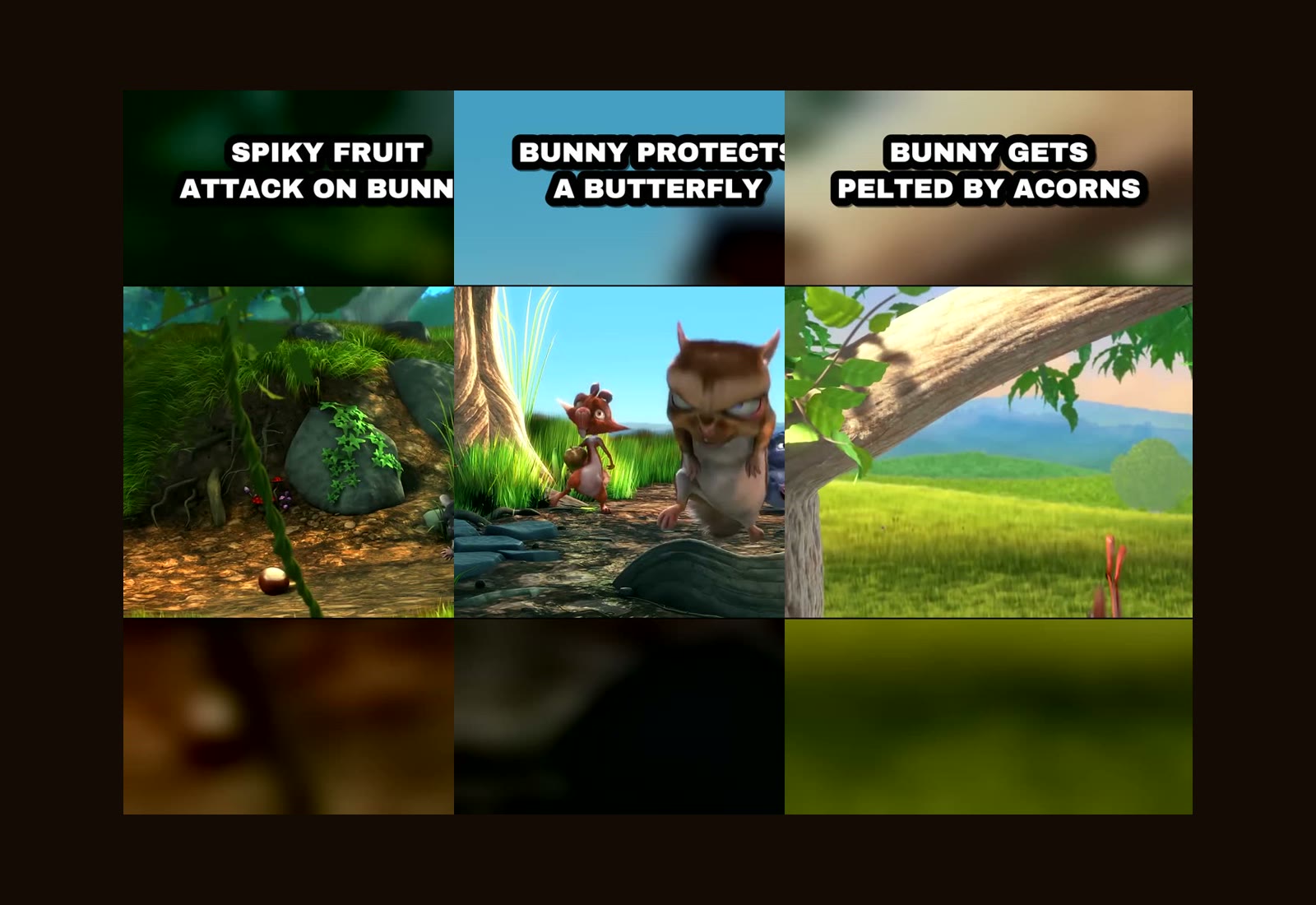
Quiet videos
Gemini watches the gameplay
When there is little speech, Gemini watches a small copy of the video to choose moments, writes the hook from what is on screen, and finds subtitles burned into the picture so they can be cropped off.
Optional · your own Google key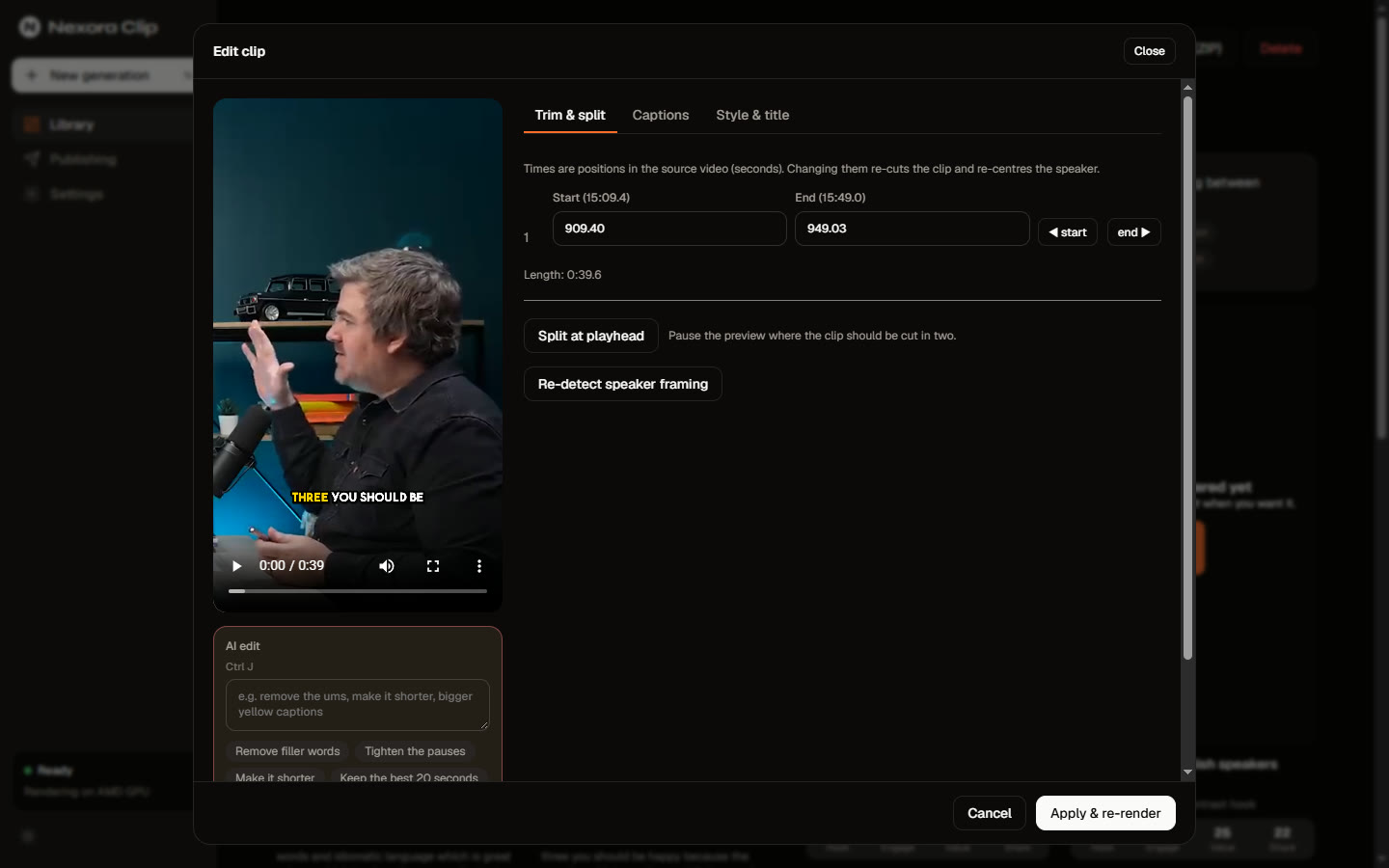
Editor
Change a clip by describing it
Trim, split, merge or fix a caption word. Or type “remove the ums, make the captions bigger” and watch it re-render.
Re-renders from the source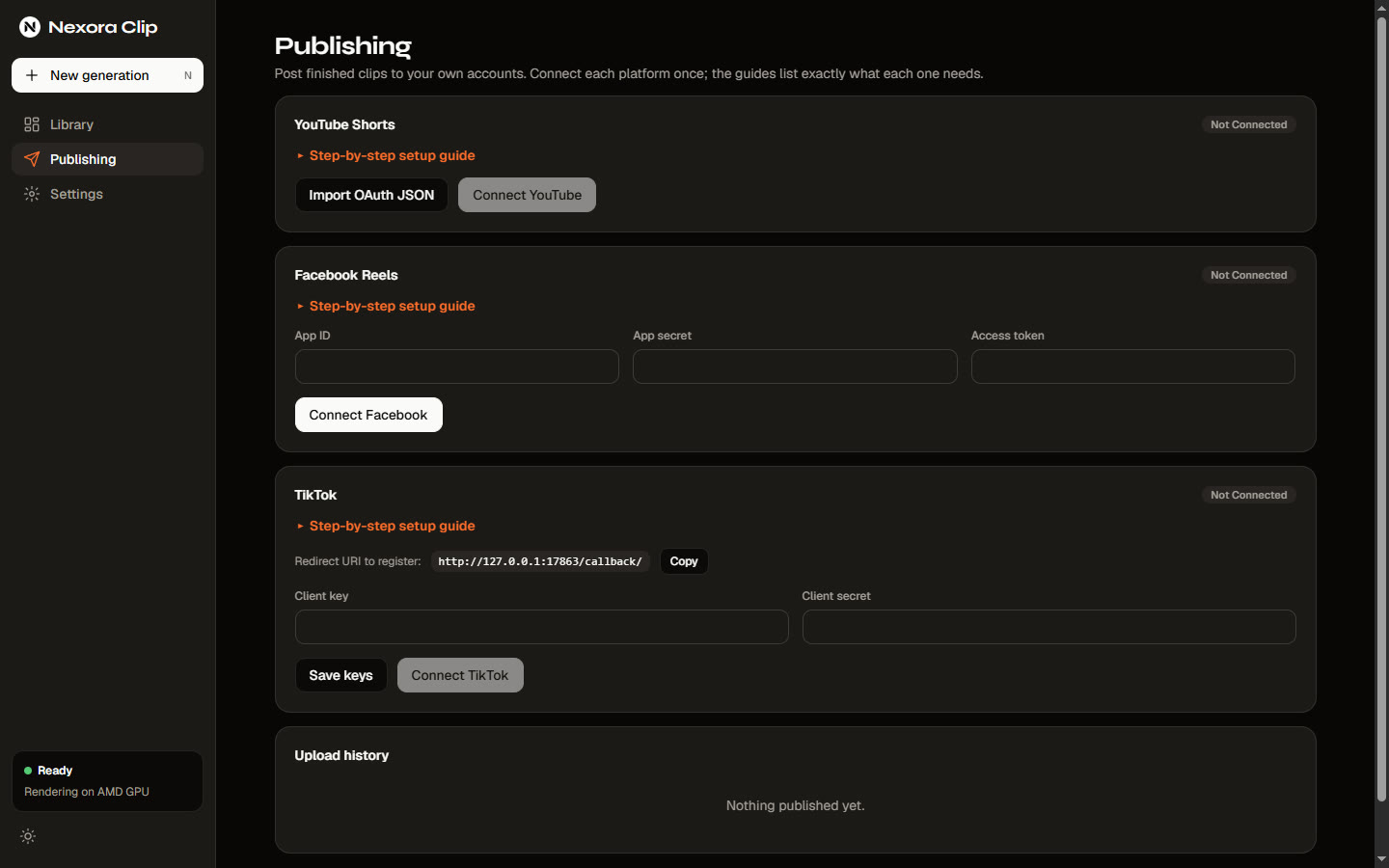
Publish
Post from the same window
Send a clip to YouTube Shorts, Facebook Reels or TikTok with your own accounts. A publish kit writes the title, description, hashtags and a cover image for each.
Setup guide for each platformFrom link to posted
Five steps. One window.
- 1
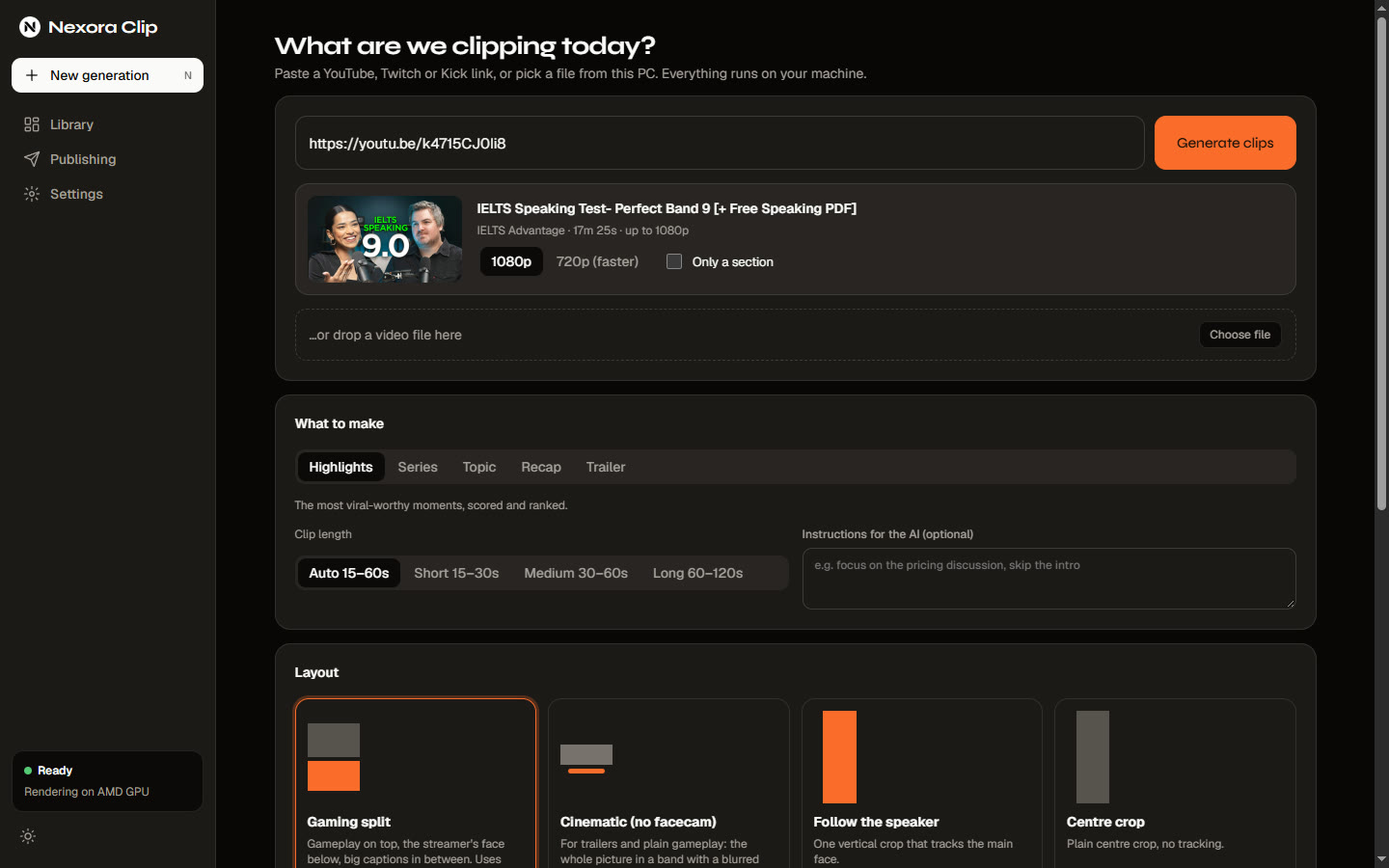
Paste a link
YouTube, Twitch, Kick or a file from your PC. The video card shows title, length and quality first.
- 2
The AI picks moments
It uses the video's own subtitles when it has them, otherwise it transcribes, then scores every moment.
- 3
Clips render
Reframed, captioned and titled. Render the best few first and make the rest later with one click.
- 4
Review and edit
Trim, fix a word, switch the layout or ask the AI for a change. Nothing is compressed twice.
- 5
Publish
Post to your accounts, or save a ZIP with the clip, a cover and ready-to-paste text.
Requirements
What you need.
A Windows PC and one way to run the AI. Everything else is installed for you.
Windows 10 or 11, 64-bit
The installer is for x64 Windows. It installs for your user and needs no admin rights.
An internet connection
To download videos, to install the tools once, and to reach a cloud AI. Cutting and rendering run on your PC.
About half a GB of free space
For the tools and the default speech model, plus room for your videos and clips. The app warns you when space is low.
One way to run the AI
Any one of these: your ChatGPT Plus or Pro plan, a free Gemini, Groq or OpenRouter key, or Ollama on your own PC.
Nice to have
- A graphics card (NVIDIA, Intel or AMD) for faster rendering. It is detected automatically.
- A Google key, so Gemini can watch videos with little speech.
- Your own YouTube, Facebook or TikTok accounts, to publish from the app.
- A free Tailscale account, if you want to use it from your phone.
- An AssemblyAI, Groq or OpenAI key for cloud transcription, if you prefer it to offline Whisper.
Installed for you
- FFmpeg (yours is used if it is on PATH)
- yt-dlp
- Deno
- whisper.cpp and a speech model
Install
Windows, in two minutes.
No Python, no Docker, no admin rights. Nexora Clip installs for your user and downloads the tools it needs.
- 1Download the installer and run it.
- 2Open Settings and press “Install everything missing”.
- 3Pick a free AI, or continue with your ChatGPT account, then paste a link.
Windows may show a SmartScreen notice because the installer is not code-signed: choose More info, then Run anyway.
Setup guide
From download to your first clip.
Five steps. The third one is where you choose how the AI runs.
Watch the 76-second walkthrough.
- 1
Install
Download the installer and run it. If Windows shows a SmartScreen notice, choose More info, then Run anyway.
Download the installer - 2
Install the tools
Open Settings. Under Tools press “Install everything missing” and wait until every row says installed.
- 3
Choose the AI
Pick one of the ways below. You can add more later; if one is busy, the next one answers.
- 4
Paste a link
On New generation paste a YouTube, Twitch or Kick link, or drop a video file. Pick a layout and press start.
- 5
Review and share
Trim or fix captions in the editor, then save the clips or publish them from the Publishing page.
Step 3: choose how the AI runs
- 1You need ChatGPT Plus or Pro. Sign up or upgrade at chatgpt.com.
- 2In Settings find “Use your ChatGPT plan” and press Continue with ChatGPT.
- 3Your browser opens at OpenAI. Sign in and allow access.
- 4Back in the app it says Connected. Pick a model from your account's list.
- 5Press “Use ChatGPT first”, then “Save & test AI connection”.
No API key needed. Your plan's usage limits apply, and when they run out the free models answer instead. Disconnect any time in the same card.
Open ChatGPTLive streams
Watch it live. It finds the moments.
Put a live stream in the Live tab. Nexora Clip shows it a few seconds behind, keeps the last ten minutes, and catches good moments by itself.
The sound jumps
A shout, a crowd, a big reaction: the sound gets much louder than that stream has been.
Action on screen
A burst of cuts and movement, like a chase, a crash or a stunt.
Chat speeds up
On YouTube, when the chat suddenly flies, the clip reaches further back to the real moment.
- 1
Add a stream
Paste a YouTube, Twitch or Kick live link, or press “Find live streams” and search, for example, GTA 6 live.
- 2
Watch and let it learn
The preview plays in the app with a sound button. For about two minutes it learns how loud and busy that stream normally is.
- 3
Pick your moments
Moments appear with the reason they were caught and how strong they are. Choose more, normal or fewer moments, or press “Clip now” for your own.
- 4
Make the clip
“Make clip” sends a moment through the usual steps: captions, hook title, layout and mood. An option can also do it by itself for the strongest ones.
Mood tags and good to know
- Every clip can carry a mood: funny, hype, fail, shock or wholesome. The task page has a filter for them.
- You can watch up to three streams at once, and it works from your phone too.
- The last ten minutes are kept on your PC and cleaned up when you stop. Clips leave your PC only when you publish them.
- Chat is read on YouTube. On Twitch and Kick the app uses sound and action.
On your phone
Use it from your phone.
Nothing to install on the phone. Your PC does the work and the phone is a window into it.
- 1
Turn it on
On the PC open Settings, find Remote access and press “Turn on remote access”.
- 2
Connect
Press Connect. Your browser opens Tailscale: sign in with Google, Microsoft or GitHub. It is free, and you do not install the Tailscale app.
- 3
Allow it once
The first time, Tailscale asks you to allow Funnel and HTTPS for your account. The app shows an “Open Tailscale” button: allow it there and come back. It carries on by itself.
- 4
Scan the QR code
Point your phone camera at the QR code in Settings. Each code works once and for ten minutes; press “New QR code” for another.
- 5
Add it to your home screen
In the phone's browser menu choose “Add to Home screen”. Nexora Clip then opens like an app.
Good to know
- Keep the PC on. The app can stay in the tray and keep the PC awake (Settings, Run in the background).
- On the phone you can see your library, start a video from a link or an upload, edit clips, save them and share them to TikTok, Instagram or YouTube.
- Keys, accounts and publishing stay on the PC. Paired phones are listed in Settings and you can remove any of them.
- Prefer your own Tailscale app, or only your home Wi-Fi? See “Other ways to connect” in the same card.
Your PC, your videos
Everything is cut and rendered at home.
Only the text goes to the AI you choose. Pictures go to Google only if you switch that on. Your clips leave your PC when you publish them.
Download for WindowsQuestions
Good to know.
Do I need an API key?
No. Free Gemini, Groq and OpenRouter models work with a free key, local Ollama needs none, and with ChatGPT Plus or Pro you can press “Continue with ChatGPT” and use your own plan. If one is busy, the next answers by itself. Transcription can run offline with the built-in Whisper.
Which videos work best?
Podcasts, interviews, talks and streams with someone speaking. Videos with little speech work too: Gemini can watch them, or the app picks moments from scene changes and loudness.
Does it use my graphics card?
Yes. NVIDIA, Intel and AMD encoders are detected and used automatically. Without one it renders on the CPU.
What leaves my computer?
The transcript goes to your AI provider to pick moments (to OpenAI under your own account if you connect ChatGPT). If you turn on Gemini vision, a few frames, or a small copy of a quiet video, go to Google. Clips leave only when you publish them.
Which platforms can I post to?
YouTube Shorts, Facebook Reels and TikTok, using your own accounts and API apps. The Publishing page has a step-by-step guide for each.
Is it free and open source?
Yes. Nexora Clip is free software under the GNU AGPL v3, and the source is on GitHub.
Can it clip live streams?
Yes. The Live tab watches a YouTube, Twitch or Kick stream, shows it a few seconds behind, and catches good moments by itself from the sound, the action on screen and, on YouTube, the chat. Press Clip now for your own, then Make clip. See Live streams above.
Can I use it from my phone?
Yes, with nothing to install on the phone. Turn on Remote access in Settings, press Connect, sign in once to a free Tailscale account in your browser, and scan the QR code. You see your library, start a video, edit clips, save them and share them to TikTok, Instagram or YouTube. The work stays on your PC, so keep it on; the app can stay in the tray and keep the PC awake. See the steps in On your phone above.
Is there a Mac or Linux version?
Not yet. Nexora Clip is a Windows app for now.